Billing portal
Page summary:
The Strapi billing portal is where you can view all Strapi subscriptions and manage payment methods, billing details, and invoices. Only Growth subscriptions can be managed in the portal; Cloud and Enterprise subscriptions are view-only.
The Strapi billing portal is where you view and manage billing for your Strapi subscriptions. You can update payment methods, edit billing details and download invoices for all subscriptions.
While you can view all subscriptions in the portal, only Growth subscriptions can be managed directly there. Cloud subscriptions are managed in the Strapi Cloud dashboard. To change Enterprise contract terms, contact sales.
To sign in:
- Enter the email address you used at purchase or for CLI authentication.
- Enter the 6-digit code sent to your inbox.
- If your email is linked to multiple billing accounts, select the account you want to manage.
Subscriptions
The Subscriptions tab displays all your Strapi subscriptions.
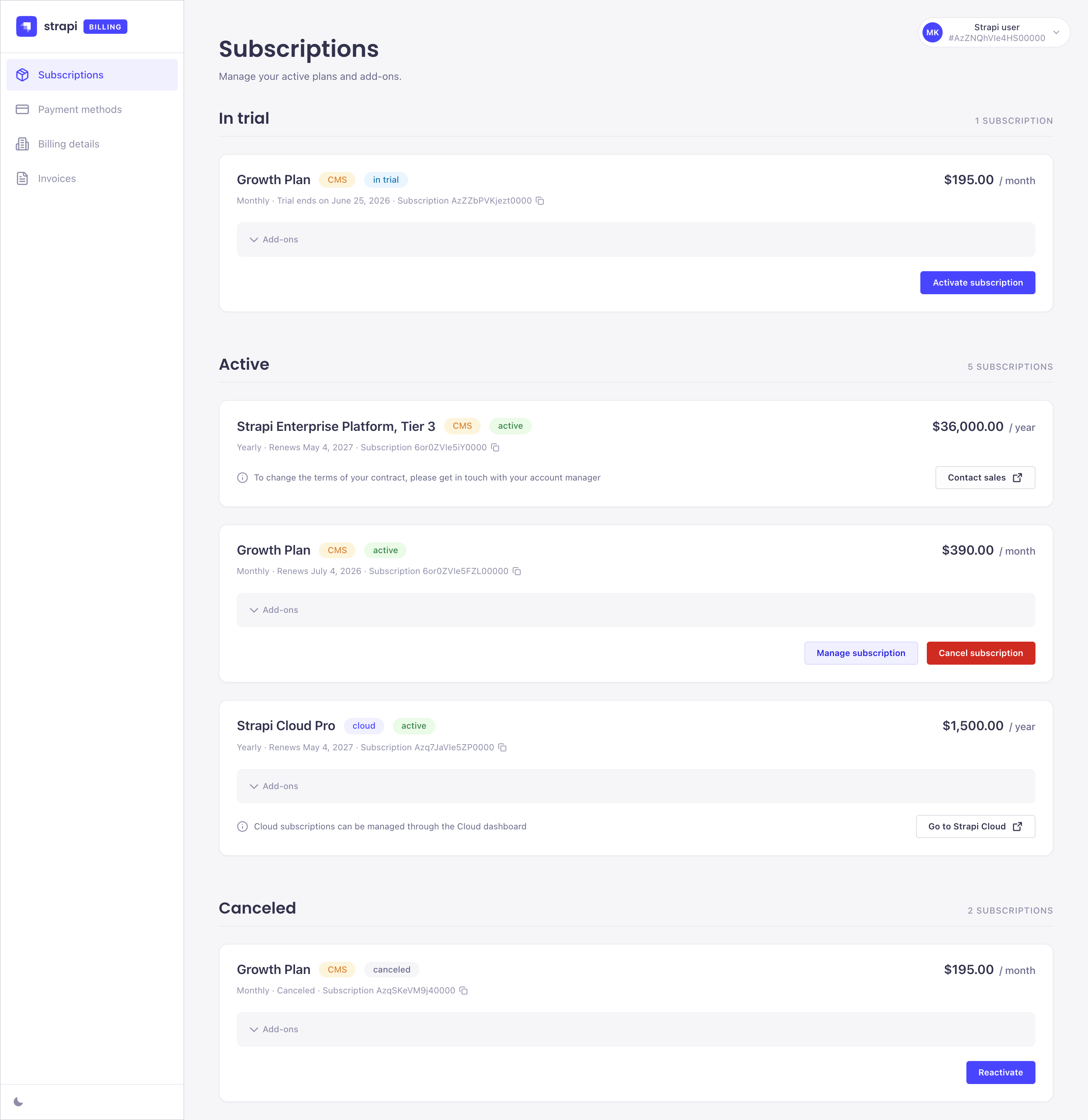
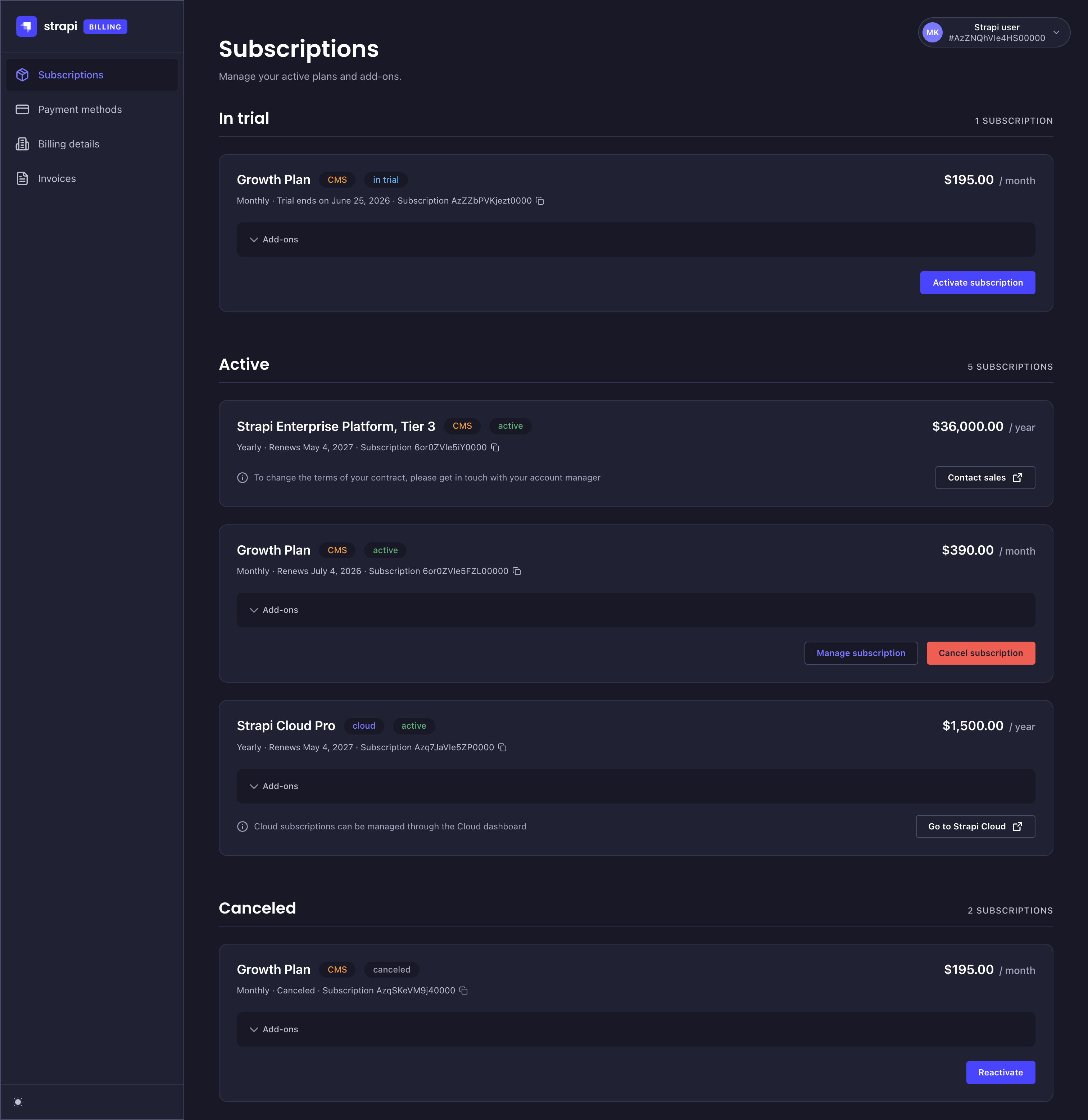
Subscriptions are grouped into the following sections:
- In trial: Trial subscriptions that have not yet converted to paid.
- Active: Active subscriptions.
- Scheduled for cancellation: Subscriptions scheduled to be canceled at the end of the current billing period.
- Canceled: Fully canceled subscriptions.
Each subscription card shows the plan name, product family, status, price, billing period (monthly or yearly), renewal or trial end date, and subscription ID. Next to the subscription ID, Cloud subscriptions show the Cloud project name and Growth subscriptions show the CMS project ID linked to the license.
Activating an in-trial Growth subscription
Before you activate, make sure to add a payment method in the Payment methods tab and complete your Billing details profile.
To activate a subscription:
- Click Activate subscription in the In trial section.
- In the Manage subscription modal, set the desired seat count and choose if the plan should include the SSO add-on.
- Click Continue to review the charge summary.
- Click Activate now to confirm.
Growth subscriptions must include a minimum of 3 seats.
Changing seats and add-ons on a Growth subscription
To update the seat count or add-ons of an active Growth subscription:
- Click Manage subscription.
- In the Manage subscription modal, adjust the seat count and included add-ons as needed.
- Click Continue to review the charge summary.
- Click Confirm to apply the changes.
When you add seats or enable the SSO add-on, the change applies immediately. You are charged a prorated amount for the remainder of the current billing period.
When you remove seats or disable the SSO add-on, the change takes effect at the next renewal. Your current seat count and add-ons stay active until then.
If you add seats and disable SSO in the same change, the seat increase applies immediately with a prorated charge. SSO removal is still deferred to the next renewal.
Cancelling a Growth subscription
To cancel an active Growth subscription:
- Click Cancel subscription.
- In the Cancel subscription dialog, click Confirm to schedule the cancellation.
Cancellations are effective at the end of the billing period. Whilst the change is pending, you can undo the scheduled cancellation and reactivate your subscription.
Similarly, you can also reactivate a canceled subscription even after the cancellation has taken effect. To reactivate, click Reactivate on the subscription card and follow the steps.
Payment methods
The Payment methods tab lets you manage the payment cards used for your subscriptions.
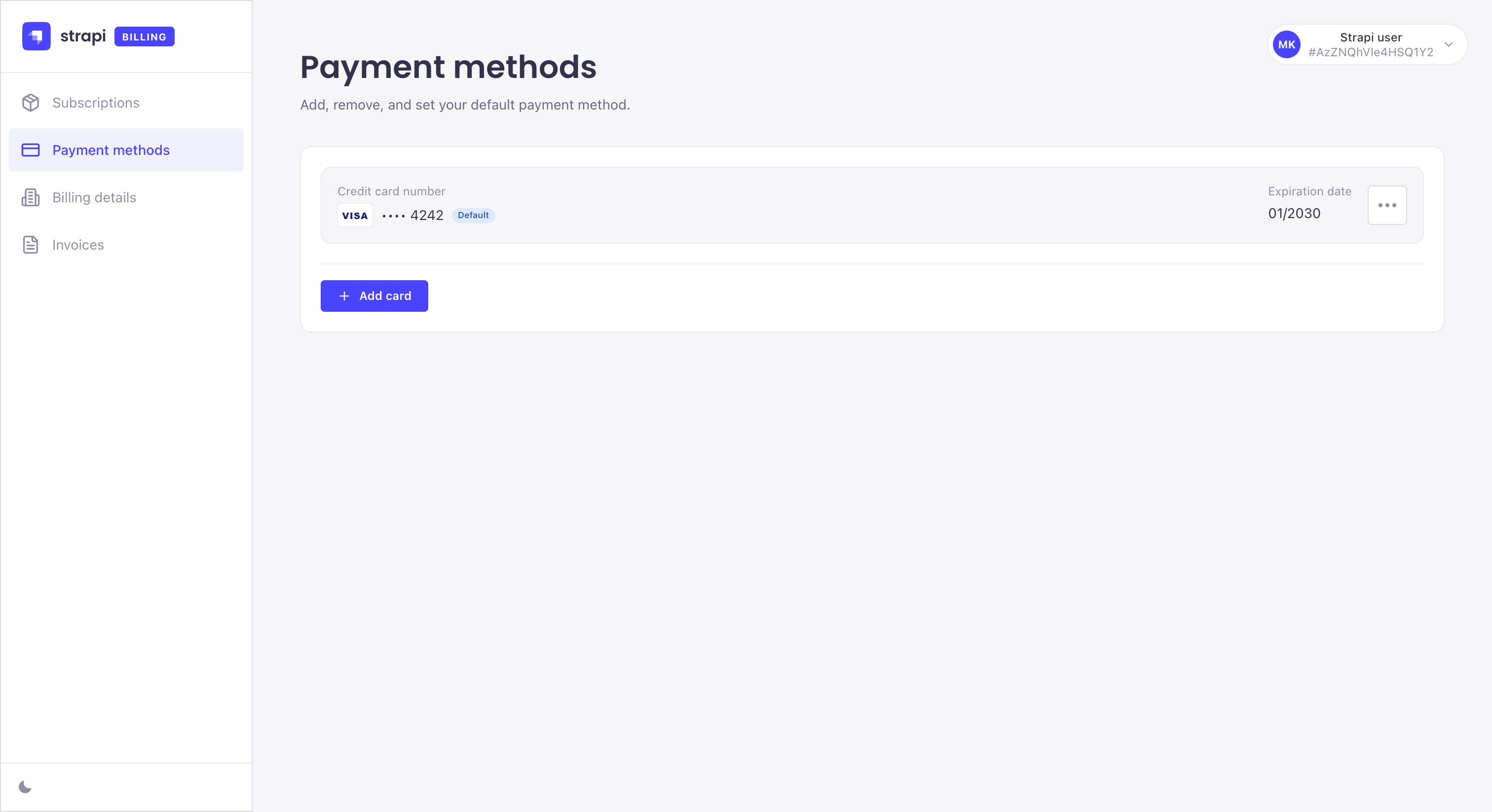
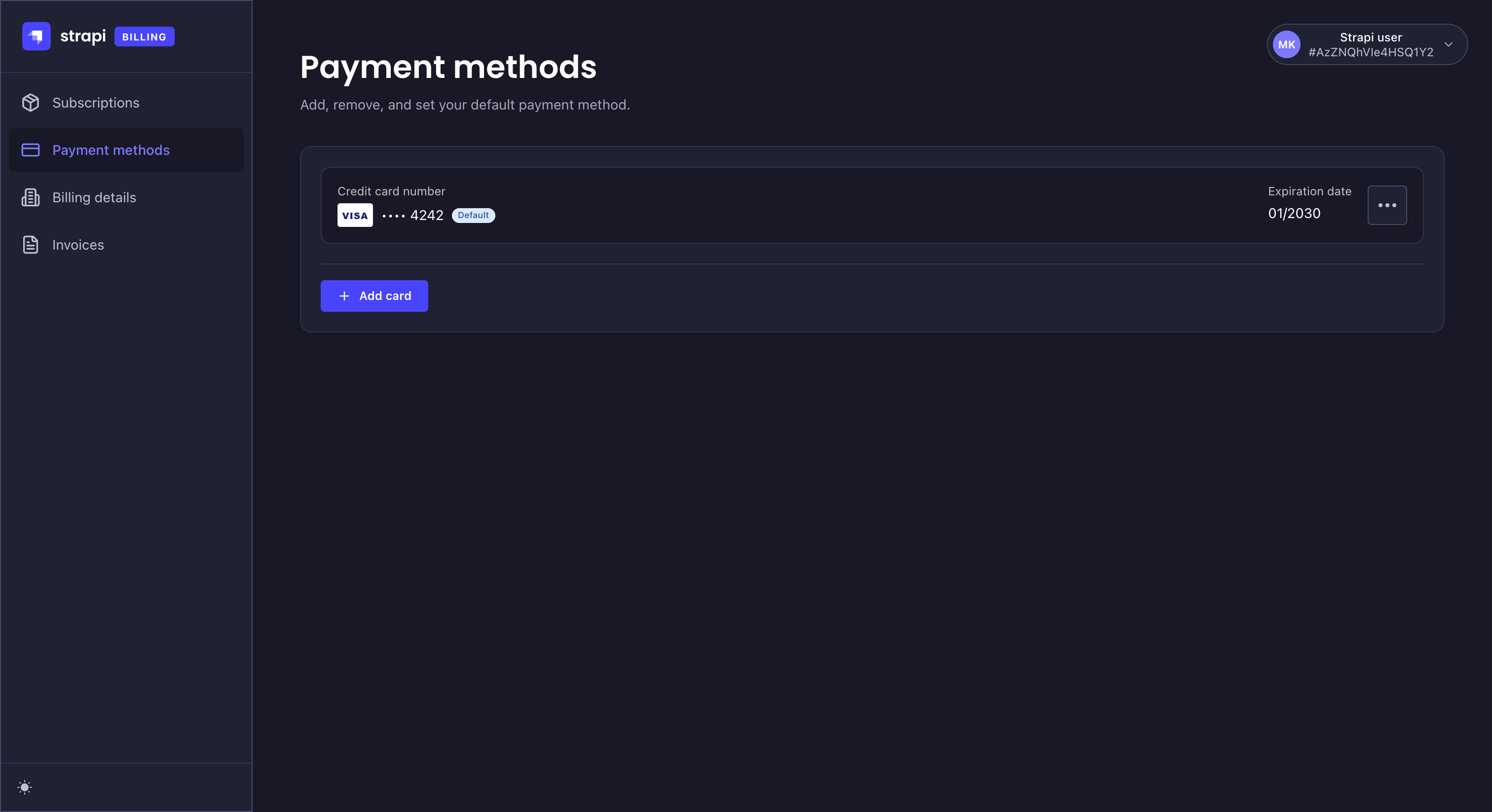
Adding a new card
To add a new card:
- Click Add card.
- In the Add payment method dialog, enter the card number, expiration date, and CVV/CVC.
- Optionally, tick Set as default payment method.
- Click Save.
The default card will be used for all subscription-related transactions, including add-ons and overages.
Updating or removing a card
To update an existing payment card:
-
Click on the icon of the payment card you wish to edit.
a. Click Set as primary to make this your default card.
b. Click Edit card and enter the card number, expiration date, and CVV/CVC to change your card details. Click Save.
To remove an existing payment card:
- Click on the icon of the payment card you wish to delete.
- Click Remove card.
- Click Confirm in the Remove payment method dialog.
You cannot remove your default card. In cases where a secondary card is attached to a subscription (e.g. for Cloud subscriptions), removing the card will automatically cancel all the subscriptions attached to that card.
Billing details
The Billing details tab lets you view and edit account billing information. Required fields in this section must be completed in order to activate a trial subscription.
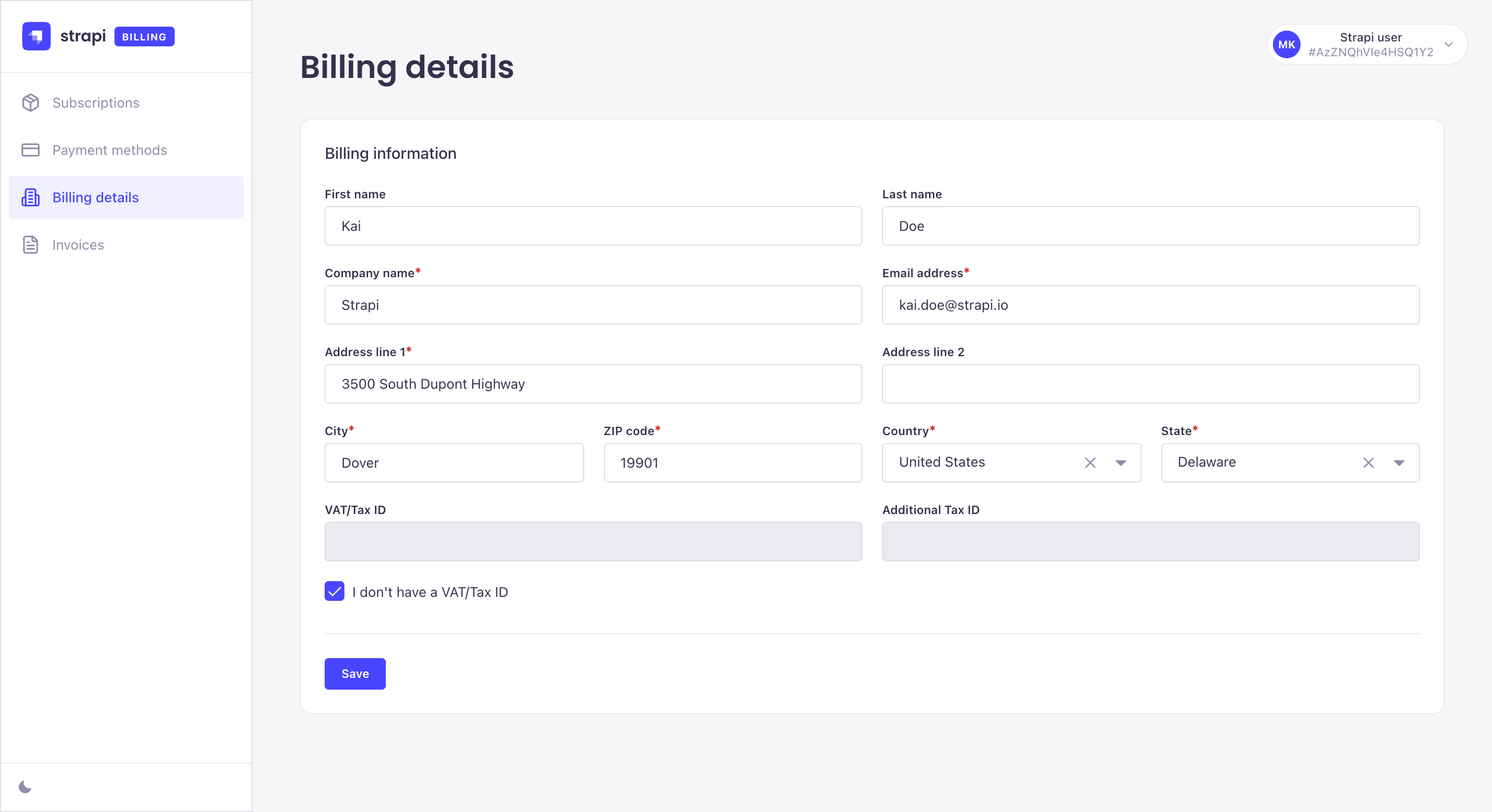
Taxes may be added to your invoice based on your billing address:
- In the EU, UK, Canada and India, providing a valid VAT ID exempts you from VAT. If no valid VAT ID is provided, VAT will be added to your invoice.
- In the US, applicable sales taxes are calculated based on your state and address.
Invoices
The Invoices tab displays all invoices for your Strapi subscriptions and their status.
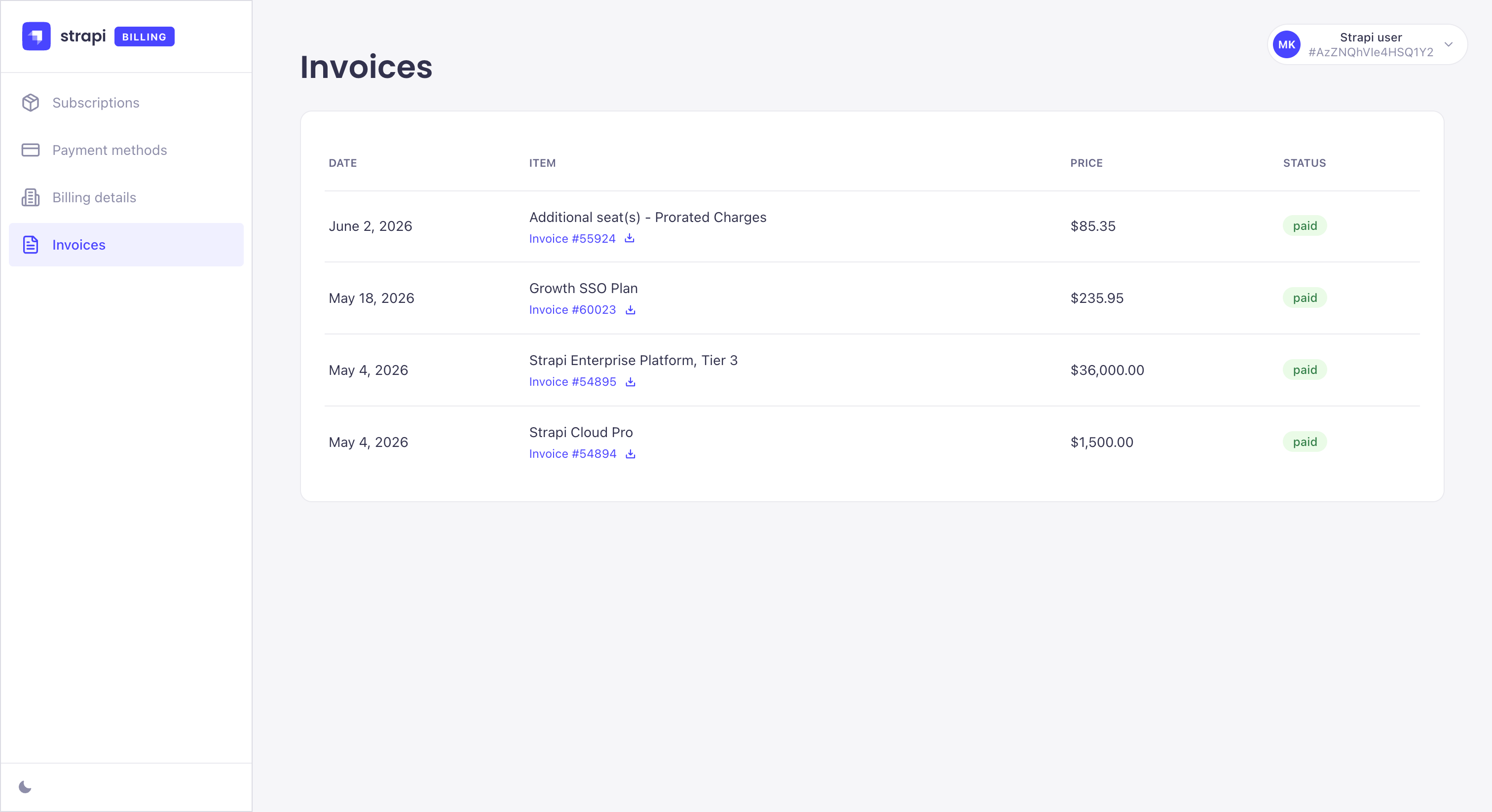
Invoices can have any of the following statuses:
- Paid: the payment has been received and the invoice is available, no additional action is required.
- Pending: the invoice is not complete or validated yet or the payment didn't go through and needs to be fixed.
- Unpaid: the payment has failed and won't automatically be retried.
- Voided: the invoice has been canceled.
Click the  icon to download an invoice.